

Triage your first audit
Work through the New tab of Opportunities after your first audit and finish with a short list worth acting on.
A first audit often surfaces dozens of opportunities. Triage is where you decide which ones you care about: Accept moves an opportunity to Active, Dismiss archives it. All of it happens on the New tab of Opportunities.
1. Open the New tab
Go to Opportunities. It opens on the New tab, which lists every opportunity you haven't decided on yet, with its journey stage, page type, and projected revenue impact per year.
You can triage from this list or from the card view. Use the view toggles next to Filter: list, grid, and the stacked triage view.
2. Narrow the list (optional)
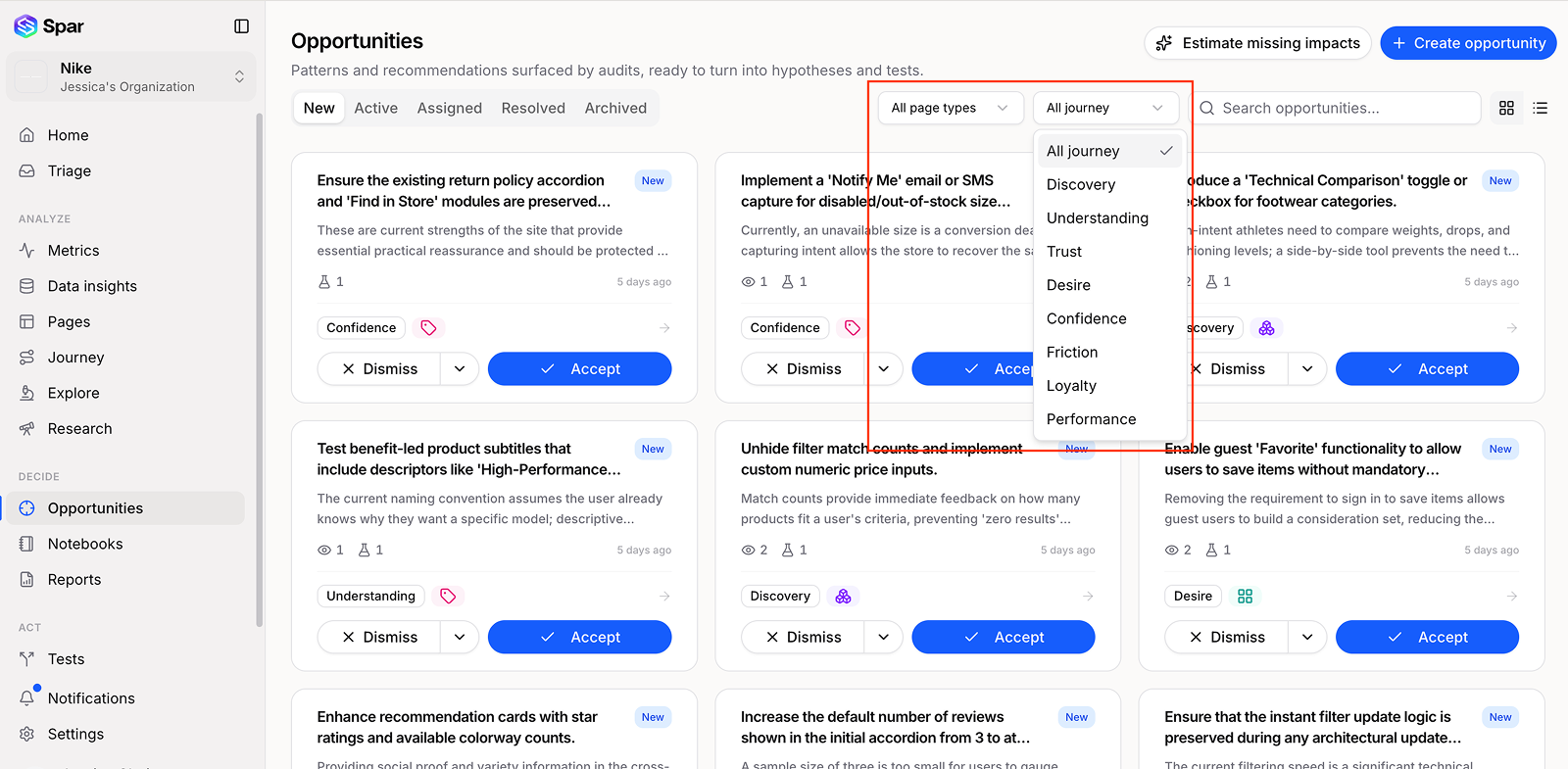
A long list is easier to work through one slice at a time. Click Filter and pick a Page type or Journey stage, or change Sort to Highest impact. The search icon finds opportunities by title.
3. Decide on each opportunity
From the list
Each row has Dismiss and Accept buttons.
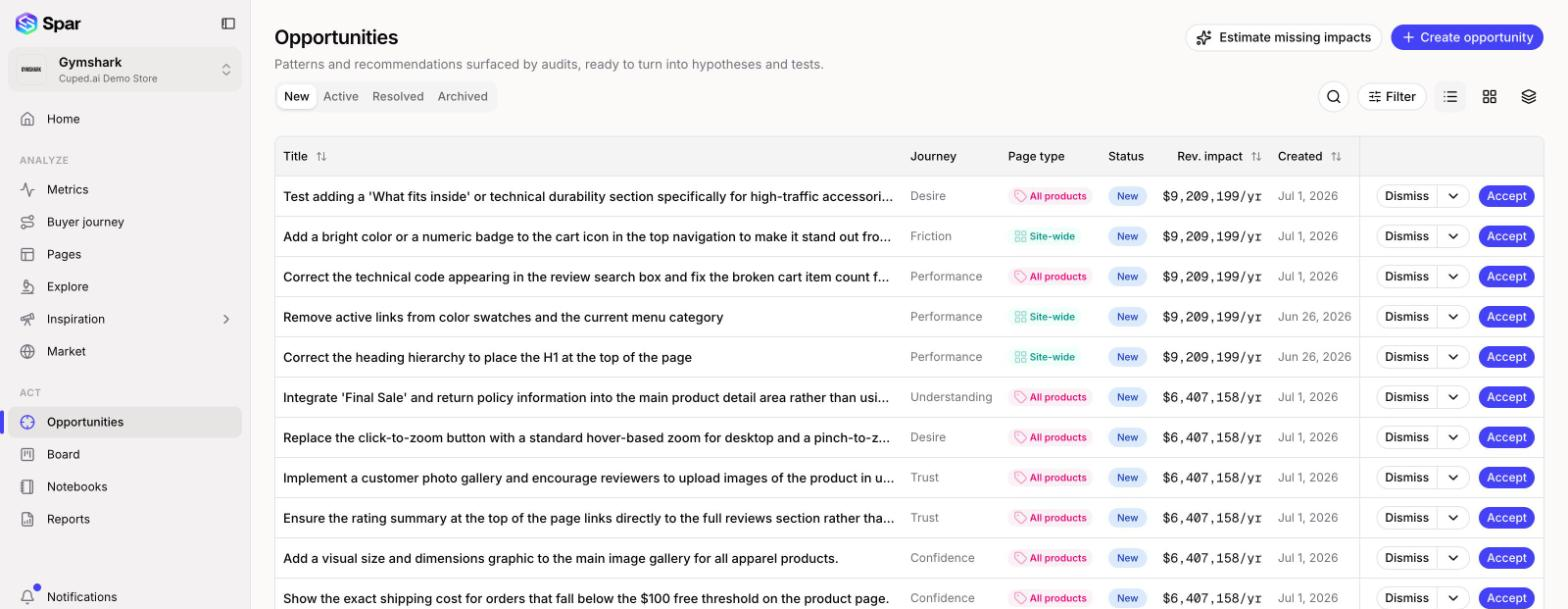
Click a row to open the opportunity's full page with its evidence and ideas before you decide.
Card by card
Click the stacked triage view icon. Spar shows one opportunity at a time with why it matters, its projected impact, and the evidence behind it, along with a counter (for example 1 of 58) and a progress bar.
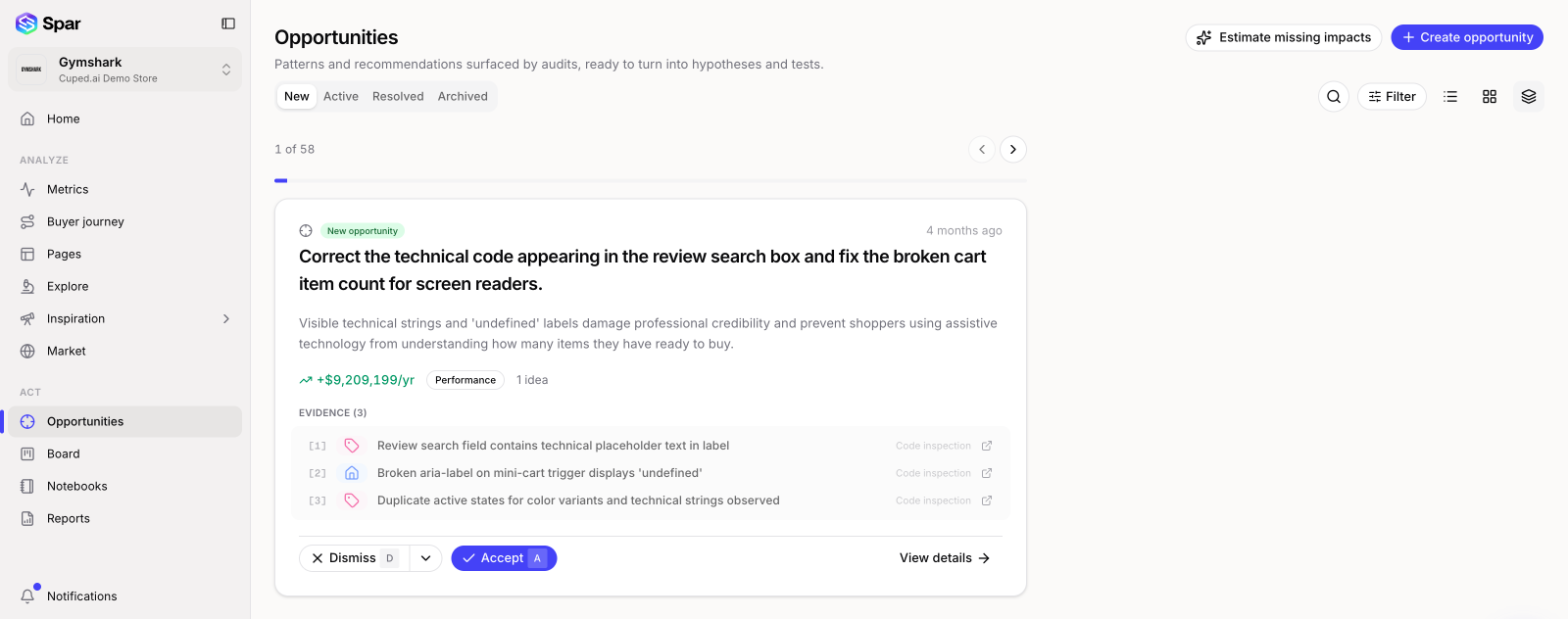
The keyboard is the fastest way through:
| Key | Action |
|---|---|
| A | Accept |
| D | Dismiss |
| Shift + D | Dismiss with a reason |
| Left / Right arrows | Previous or next card |
| Enter | Open details |
4. Dismiss with a reason
When you dismiss something because it doesn't fit your brand or you've already tried it, leave a note so your team knows why. Click the arrow next to Dismiss (or press Shift + D), type in Why are you dismissing this opportunity?, and click Dismiss with reason. Dismissed opportunities move to the Archived tab.
5. Know when to stop
Opportunities are ranked by impact, so the most valuable ones come first. Once you're into the long tail, stop. Undecided opportunities stay on the New tab for next time. A first pass that ends with a handful of accepted opportunities is a good result.
If some opportunities show no impact estimate, click Estimate missing impacts at the top of the page to queue estimates for them.
6. Act on what you accepted
Accepted opportunities live on the Active tab. Open one, Review its ideas, and click Create test on the one you want to try. See Run an A/B test end to end.
If you want accepted opportunities to turn into tests on their own, turn on Accept ideas automatically when an opportunity is accepted under Settings > Workflow. Spar then accepts the opportunity's recommended idea and queues it as a test.
Last updated on