

Send a test to your experimentation platform
Deploy a Spar-generated test through GrowthBook, Intelligems, Convert, or the Shopify theme app instead of running it natively.
Spar can deploy tests through whichever platform your team has standardized on. This guide covers connecting a platform once, picking it as your default, and overriding the target on individual tests.
Supported platforms
| Platform | Best for |
|---|---|
| Shopify (theme app extension) | Shopify stores; no extra platform needed |
| GrowthBook | Teams already running GrowthBook experiments |
| Intelligems | Pricing tests on Shopify |
| Convert | Teams already running Convert Experiences experiments |
Each platform owns the actual variant assignment and serving — Spar's job is to generate the variant code, push it across, and pull back the results.
1. Connect the platform
Go to Settings → Integrations and connect the one you want to use.
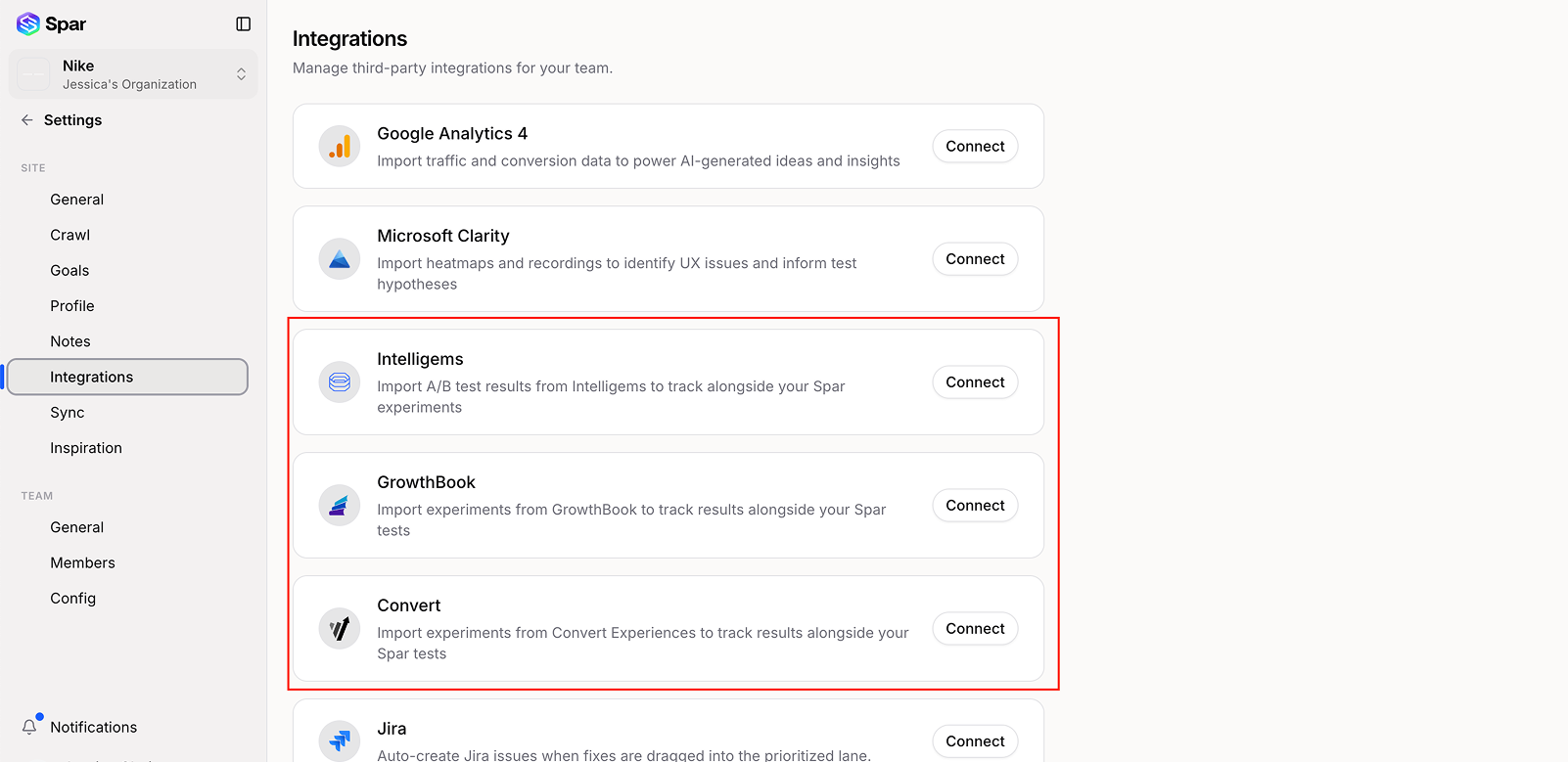
- GrowthBook — sign in with the GrowthBook account that owns the workspace, then pick the project to push tests into.
- Intelligems — paste your Intelligems API key.
- Convert — paste your Convert API key and Project ID.
- Shopify — install the Spar theme app extension on the store.
Connection details and what each integration enables: see Settings → Integrations.
2. Pick your default execution target
Most teams run all their tests through the same platform. Set the default once under Settings → Sync.
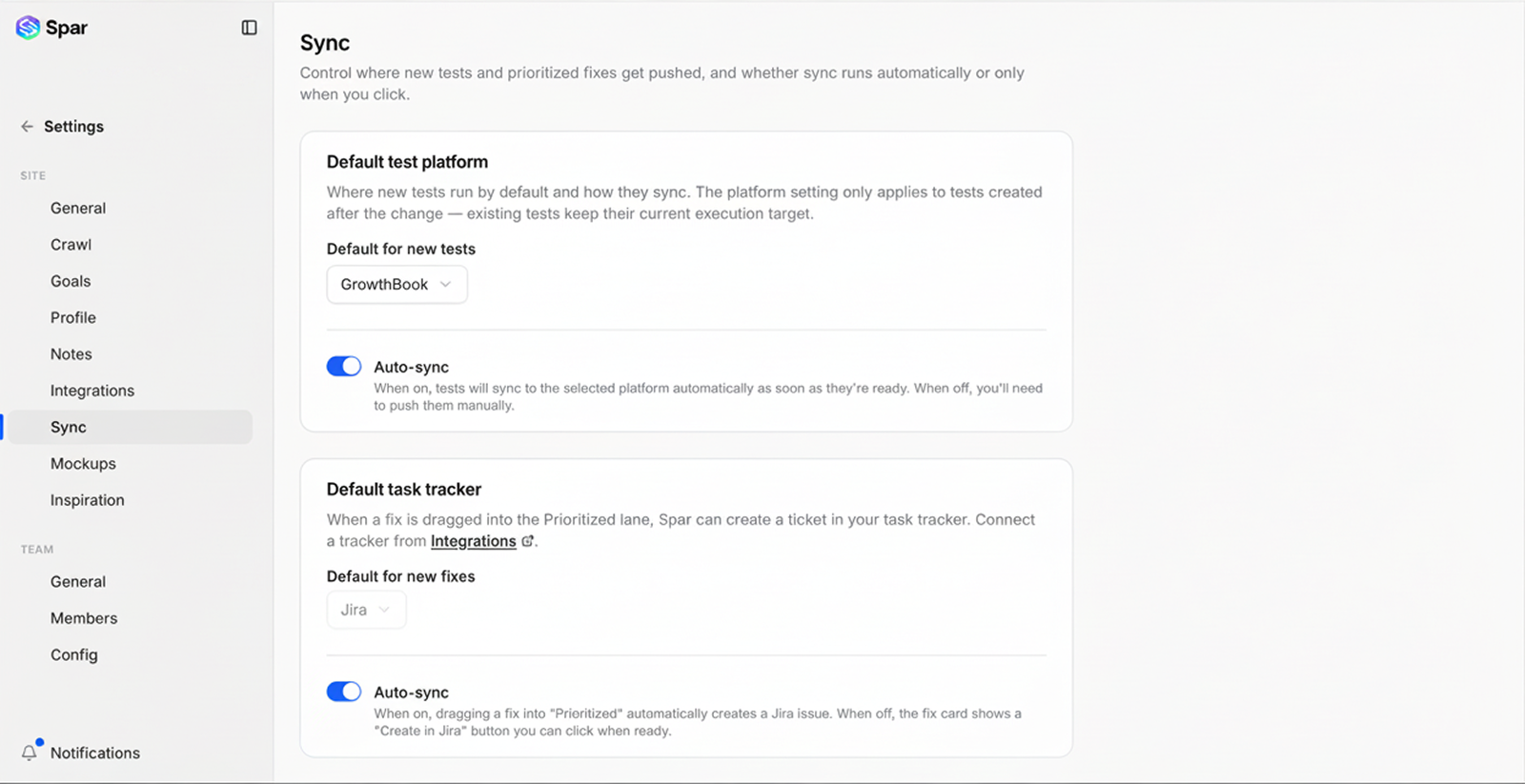
After this, any opportunity you Run as test will deploy through the chosen platform automatically.
3. Override on a per-test basis
Sometimes you want one test on a different platform — for example, running a UI change through GrowthBook but a pricing test through Intelligems, or a split-URL test through Convert. Open the test's Setup tab and change the Execution target dropdown before moving the test to Running.
4. Deploy
Drag the test from Ready to Running on the kanban. Spar:
- Generates the deploy payload in the format the target platform expects (GrowthBook feature flag, Intelligems experiment, Convert experience, or Shopify theme block).
- Pushes it across.
- Marks the test Running once the platform confirms it's live.
If anything fails, the test flips to Failed with the error message from the platform attached.
5. Reading results
Spar pulls metrics back from the connected platform and shows them on the test's Analytics tab — same significance view regardless of where the test is actually running.
For GrowthBook, Intelligems, and Convert specifically, you can also keep using their native dashboards; Spar's view is read-only on the metrics it pulls.
Orphan tests
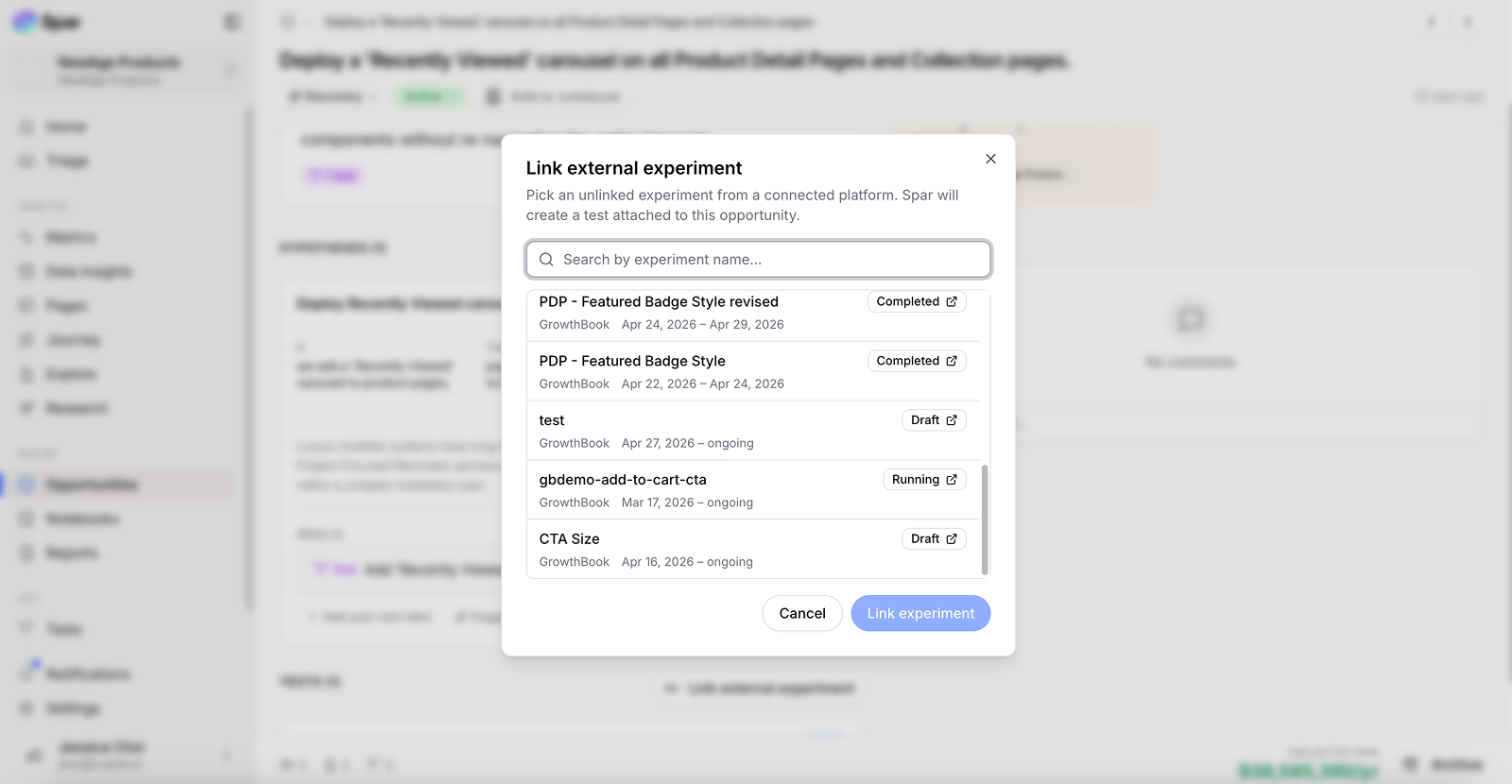
Experiments already running in your testing platform that were not created from a Spar opportunity must be manually linked to an opportunity so they can be tracked alongside the rest of your optimization work.
- Navigate to Opportunities and pick the opportunity that best matches the orphan test.
- If a matching opportunity does not exist, create one by following the Add your own idea guide.
- In the Opportunity Details page, navigate to the Tests section and click Link to External Experiment.
- Select the experiment from your testing platform.
Once linked, Spar will create a test card on the Tests page and automatically sync the experiment's status.
When to use Spar's native target instead
If you don't already have an experimentation platform, just use the Shopify theme app — there's nothing to set up and Spar handles assignment and stats. You can move to GrowthBook, Intelligems, or Convert later without re-doing anything.
Last updated on