

Hand off a report to a stakeholder
Generate a frozen report, share the link, and collect feedback — the standard monthly client review flow.
Reports are how you wrap up a period's worth of CRO work into something a stakeholder can read on their own. This guide walks through generating one and getting it in front of the right people.
1. Generate the report
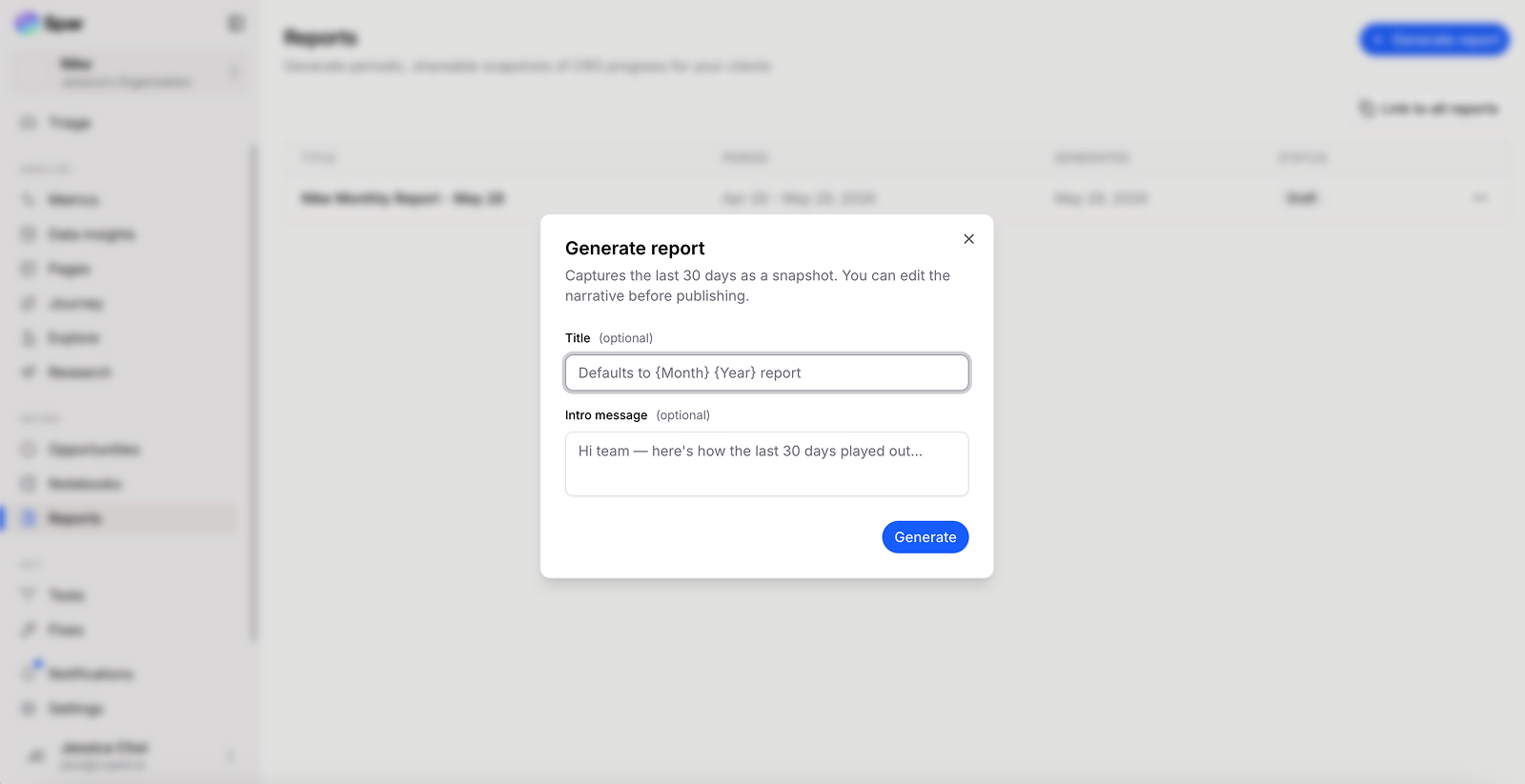
Open Reports and click Generate report. A dialog appears with two optional fields:
- Title — defaults to
{Month} {Year} reportif left blank. - Intro message — a short note to set context for the reader, e.g. "Hi team, here's how the last 30 days played out…"
Fill in what you need and click Generate.
2. Generate and verify
It takes about a minute to generate. Open the report and skim through — once shared, it's frozen, so this is the moment to fix anything off.
3. Choose sections
The report is automatically generated using data from your audit, giving you a strong starting point for stakeholder-ready reporting.
You can customize the report by adding, reordering, or editing sections. By default, reports include:
- Introduction — Add a personalized message for stakeholders to provide context and highlight key updates.
- Executive summary — A high-level overview of performance during the reporting period.
- Health score, performance snapshot, and journey health — Key metrics and insights sourced from GA4.
- What changed this month — Notable shifts and trends since the previous report.
- Key learnings — Insights gathered from tests, user behavior, and observations.
- CRO priorities — Recommended optimization opportunities based on ideas marked as Tests or Fixes, including their current status and newly identified opportunities. Add or remove priorities to tailor the report for your audience.
You can also create custom sections to include additional context, recommendations, or stakeholder-specific updates.
4. Share the link
Click Share on the report and copy the URL. Send it via Slack, email, or whatever you normally use. Recipients don't need a Spar account — see Working with stakeholders.
5. (Optional) Collect feedback
If you want stakeholders to weigh in on individual opportunities inside the report, share those separately — see Shareable links. Stakeholders can vote, comment, and approve from the share view.
Reports vs. live shares
| Report | Live share (opportunity, notebook) | |
|---|---|---|
| What recipient sees | Frozen snapshot at generation time | Current state — updates when you edit |
| Best for | Monthly reviews, deliverables | Active back-and-forth on a single item |
| Stakeholder actions | View only | Vote, comment, approve |
Use reports for deliverables. Use live shares for conversations.
A practical cadence
A workflow that holds up over time:
- Weekly — quick triage pass, share 1-2 opportunities live for approval (see Add your own idea).
- Monthly — generate a report for the client, walk through it on a call.
- Quarterly — a longer-form report covering trends across the period.
Last updated on
Re-audit after a site change
Re-crawl the store after a redesign, a fix, or a test win — and see what shifted in your gaps, opportunities, and health score.
Track conversions server-side
Post conversions directly from your backend for checkouts that never run the Spar script or never redirect back to your site.