

Audit
Set how much customer feedback each audit reads and which audiences to leave out of your KPIs.
Control how much customer feedback each audit reads, and keep known groups of visitors out of your KPI chart. Open Settings > Audit (the page is titled Audit settings).
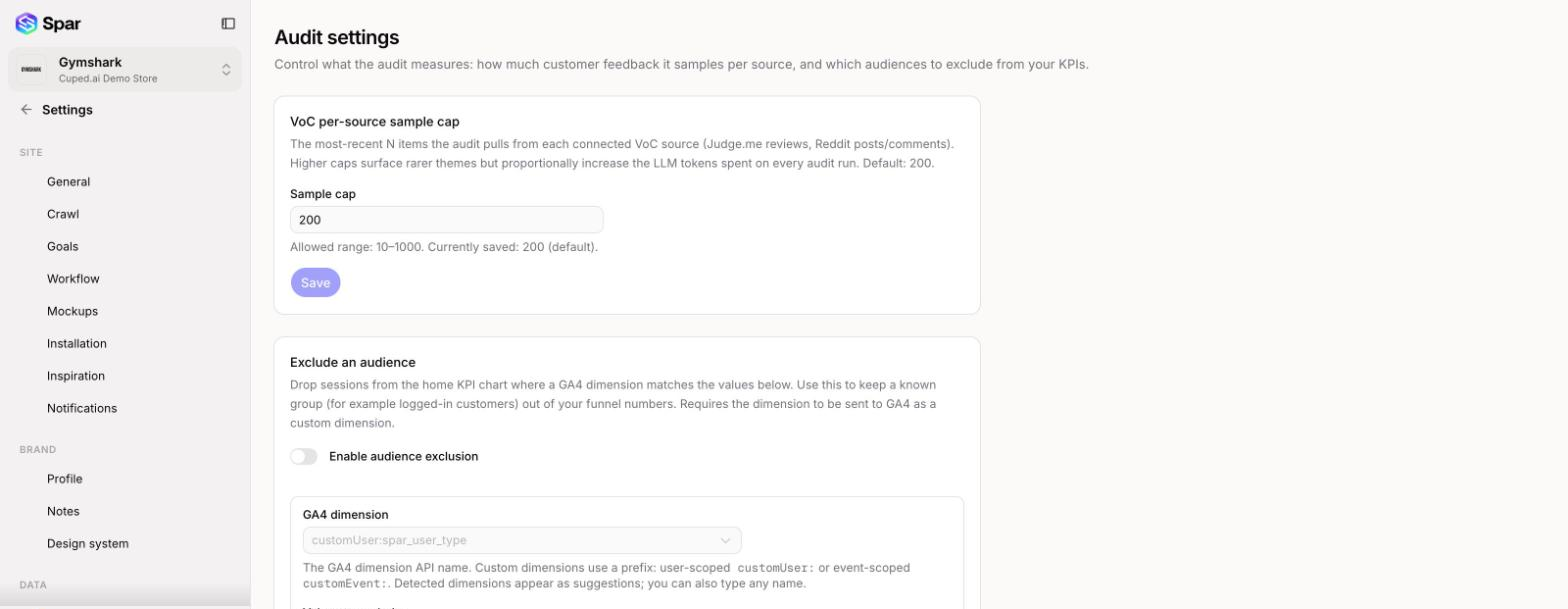
VoC per-source sample cap
When you've connected voice of customer sources such as Judge.me reviews or Reddit (see Integrations), each audit reads the most recent items from every source. The Sample cap sets how many items per source.
The default is 200, and you can choose anything from 10 to 1,000. A higher cap can surface less common themes, but every audit costs more to run. Enter a number and click Save. Click Reset to default to go back to 200.
Gorgias tag frequency
If Gorgias is connected and has tagged tickets, a Gorgias tag frequency chart appears here. It shows your top 10 support ticket tags from the last 30 days and how each one changed from the 30 days before. It's for reference only and has no settings.
Exclude an audience
Use this to keep a known group, such as logged-in customers or staff, out of the KPI chart on Home. Spar drops any session where a GA4 dimension matches the values you list. The dimension has to be sent to GA4 as a custom dimension, and GA4 must be connected.
- Turn on Enable audience exclusion.
- In GA4 dimension, pick or type the dimension's API name. Custom dimensions start with
customUser:(user-scoped) orcustomEvent:(event-scoped). Spar suggests the custom dimensions it finds in your property. - In Values to exclude, pick suggested values or type a value and press Enter. Add as many as you need.
- Click Add exclusion.
Each exclusion appears as a row with its dimension and values. Click the trash icon to remove one. Turning the switch off pauses all exclusions without deleting them.
Last updated on