

Board
The kanban of tests and fixes you're shipping, and the page where you design, launch, and read each test.
The Board holds everything you're shipping: A/B tests and fixes, side by side on one kanban. Open a card to design the change, set up the launch, and read the results.
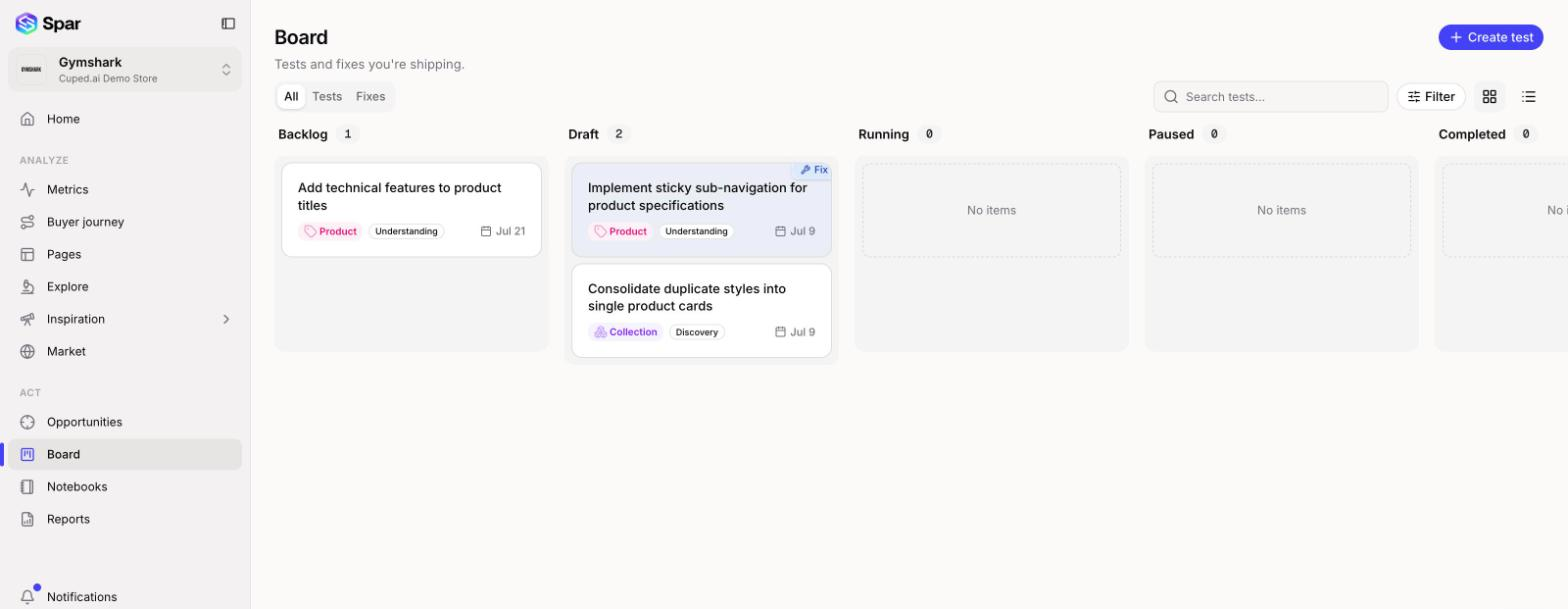
Tests and fixes
A test is an A/B test: you're not sure which version will do better, so you split traffic and measure. A fix is a change you just ship, because it's clearly better (something is broken, missing, or mislabeled) or because the page doesn't get enough traffic to test. Fix cards have a Fix badge in the corner.
Use the All, Tests, and Fixes tabs to see one kind or both. You can switch a card between the two with Convert to fix or Convert to test in the ... menu on its page.
Lanes
Drag a card between lanes to change its status.
- Generating: Spar is still building the card from your description.
- Setup: the test still needs its first design.
- Backlog: ideas you've committed to but haven't started.
- Draft: being designed and prepared for launch.
- Running: live on your store.
- Paused: stopped for now, with results kept.
- Completed: finished.
Generating and Setup only show up when they have cards, and you can't drag cards into them. Fixes only use Backlog, Draft, and Completed.
Search by title with Search tests.... Filter narrows the board by Page type, Journey, and experiment Platform, and sorts by lane position, highest impact, newest, or oldest. The icons on the right switch between board view and table view.
Create a test
Most tests start from an idea on an opportunity. To start one from scratch, click Create test, describe the change under Describe the test (for example "Move the trust badges above the fold on product pages"), choose where to Run this test on, and click Create test. The card shows up in Generating while Spar drafts it.
The test page
Click a card to open it. The header shows the name (click it to rename), the status, and the main action for where the test is: Launch test before it starts, Pause test while it runs. The ... menu has Convert to fix (or Convert to test), Duplicate test, and Archive test.
The page has four tabs: Design, Launch, Results, and Relations. Results stays greyed out until the test has run, and fixes don't have it.
Design
The first time you open a new test, Design walks you through it. Confirm the test details (purpose, hypothesis, target page, and the proposed change), then Spar generates three starting designs. Pick one under Selected design and click Build this design. If none of them fit, click Generate 3 more designs.
Once a design is built, Design shows the test's variations as cards, with the test's purpose and hypothesis on the right. Click Edit on a card (or Finish design if it isn't done yet) to open the editor, where you can see a live preview and ask Jade, Spar's assistant, for changes in plain English. Click Add variation to start another one.
Each variation card's ... menu has:
- Share preview link, which copies a link to the live preview
- Rename, which opens Rename variation so you can change its name (you can also rename from the variation list inside the editor)
- Delete
When you edit a variation's content directly, image fields take either an image URL or a file. Click the upload button next to the URL box and pick a JPEG, PNG, WebP, GIF, or SVG up to 5 MB.
Launch
The Launch tab holds every setting the test needs before it goes live.
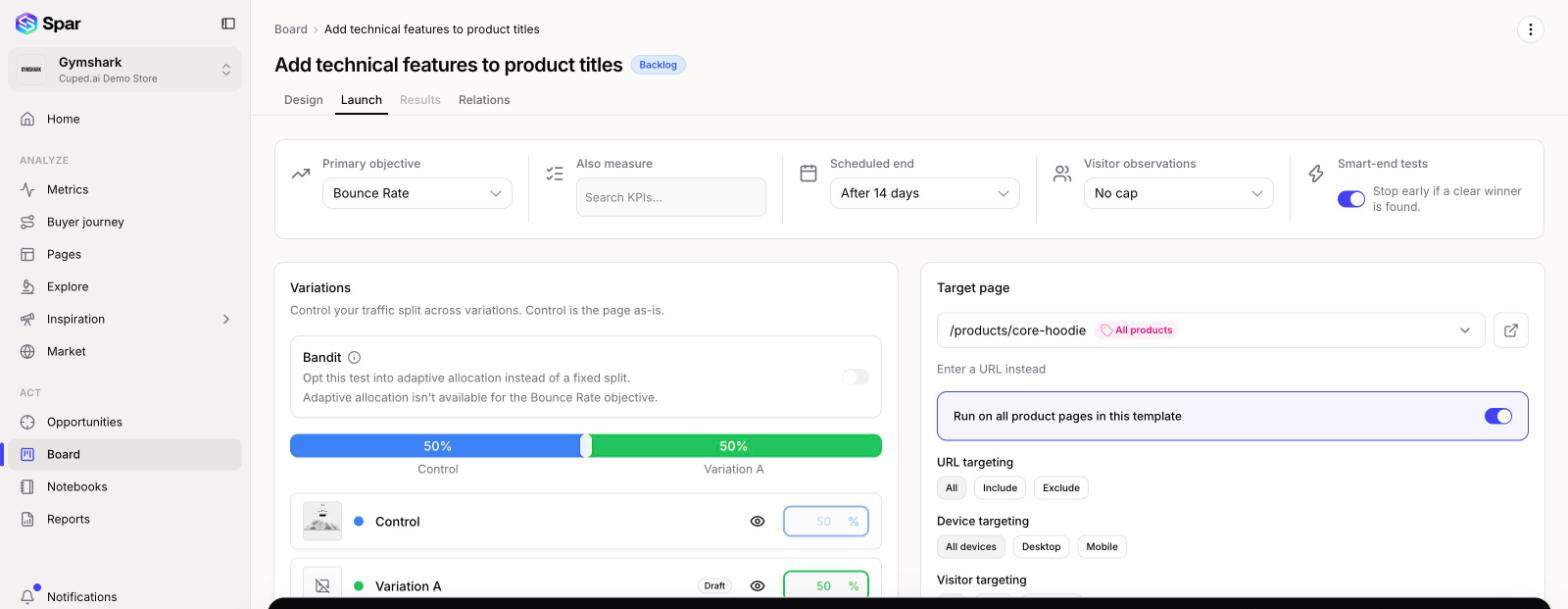
Across the top:
- Primary objective: the metric that decides the winner.
- Also measure: secondary KPIs to track alongside it.
- Scheduled end: Until you end it, after a set number of days, or Custom....
- Visitor observations: No cap, or stop after a set number of visitors.
- Smart-end tests: stop early if a clear winner is found.
Variations sets the traffic split. Control is the page as-is. Drag the slider or type a percentage for each variation, and click the eye icon to preview one. Turn on Bandit to let Spar shift traffic toward the better performer as results come in instead of keeping a fixed split. Bandit isn't available for every objective (bounce rate, for example).
Target page sets which pages the test runs on. Pick a page from the list, or click Enter a URL instead. For a product or collection page, turn on Run on all product pages in this template to cover every page that uses the same template. Then narrow the audience:
- URL targeting: All, Include, or Exclude. This shows up for
template-wide and site-wide tests. Choose Include or Exclude and
enter one path per line (for example
/cartand/checkoutto keep a site-wide test off those pages). Paths are matched against the page's pathname. - Device targeting: All devices, Desktop, or Mobile.
- Visitor targeting: All, New, or Returning visitors.
Experiment platform picks the tool that serves the test, under Run this test on. The default is Spar. If you've connected GrowthBook, Intelligems, Convert, or another platform under Settings > Integrations, you can pick it here instead. If you use a task manager, a Task management card shows the linked ticket.
Click Save changes after editing, or Discard to undo. The objectives, target page, targeting, and experiment platform can only be changed while the test is in Backlog and hasn't had any traffic, so set them before you move the card to Draft. Once the test is running or has ended, the whole tab is read-only.
Launch blockers
The bar at the bottom tells you whether the test is ready. If something's missing it reads, for example, "1 blocker to launch". Click Review blockers to see the checklist.
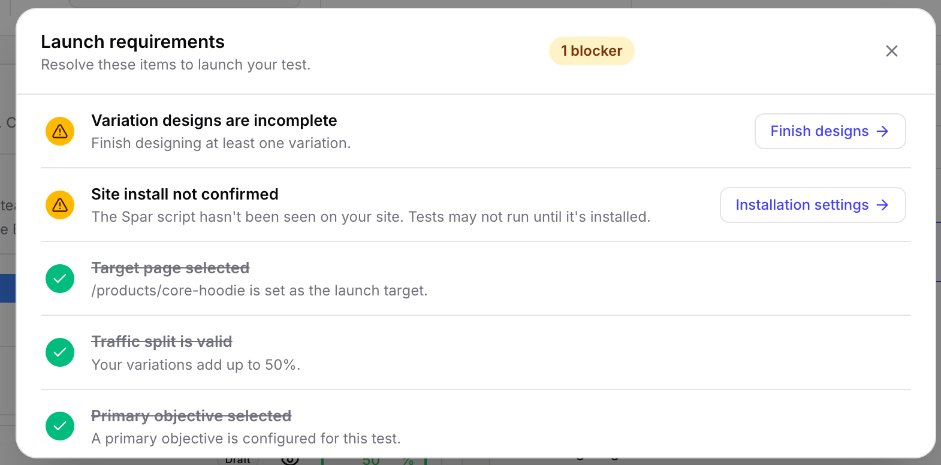
The checklist covers:
- Unsaved settings: save your changes first.
- Target page: one must be selected.
- Variation designs: at least one variation must be finished. Click Finish designs to go back to Design.
- Traffic split: the split can't add up to more than 100%, and every variation needs some traffic.
- Primary objective: one must be selected.
- Schedule: the duration must be a whole number of days.
- Conflicting tests: another running test can't overlap the same target and audience. Click View running tests to find it.
- Site install: whether Spar has seen its script on your site. If it hasn't, you get a warning and can still click Launch anyway, since installs through a tag manager can't always be detected. Click Installation settings to check the install. On Shopify, the check looks for the Spar app embed instead. If the embed is turned off, that does block the launch; click Enable app embed to turn it on.
When everything's done, the bar reads Ready to launch and Launch test starts the test.
Run a test on another experiment platform
If Run this test on is set to a connected platform, Spar doesn't launch the test itself. It creates a draft experiment on that platform, you start it there, and results sync back to Spar. The schedule settings are replaced with "Scheduling runs in" the platform, because end date, sample size, and early stopping are set there. Run on Spar instead switches back.
The bar at the bottom walks you through it:
- Fix any blockers (only target page, variations, traffic split, and objective apply), then click Create in followed by the platform name (for example Create in GrowthBook).
- The bar shows "Creating draft in GrowthBook..." while Spar sets it up.
- Once linked, it reads Synced with GrowthBook. Click Open in GrowthBook to start, stop, or schedule the test there, and Sync now to pull the latest status and results.
If the push fails, the bar says it couldn't create the draft and shows the platform's error. Fix what the error points to (for example, reconnect the platform in Settings > Integrations if the connection expired) and click Retry push, or click Switch to Spar to run the test on Spar instead. If the draft was created but couldn't be linked to the test, click Sync now to attach it.
You can also have Spar create the draft automatically whenever a test moves into Draft. Turn that on in Settings > Sync. Draft cards on the board show a Create in button for the platform until the draft exists. The how-to Send a test to your experimentation platform covers setup end to end.
Results
Once a test is running, Results shows:
- The objective, start and end dates, and progress
- Overall performance: total views, unique users, objective events, and overall conversion rate
- Current leader (or Result once the test has ended), with its change against control
- Charts of chance to win and relative change over time
- A Variations table with users, conversions, confidence, and the relative and absolute change for each variation
- Where the lift comes from, which breaks results down by device, new vs. returning, channel, page type, or country. Segment results are exploratory, so treat them as leads rather than conclusions.
Switch between the objective and your secondary metrics with the tabs above the results. A note at the top suggests the next step, such as waiting for more data or reviewing a clear winner.
How Spar decides when to declare a winner (the confidence threshold, the decision method, and whether tests end automatically) is set in Settings > Workflow.
Relations
Relations shows the idea and the opportunity the test came from, so you can get back to the evidence behind it. Click either card to open it.
Fixes and your task manager
Fixes don't need a launch. You move them from Backlog to Draft while the work happens and to Completed when it's shipped.
If you've connected Jira, Asana, or ClickUp, Spar can create a ticket for each fix. In Settings > Sync, turn on Sync to task manager under fix sync, and dragging a fix into Draft creates the ticket automatically. With it off, click Create in Jira (or Asana, or ClickUp) on the fix card when you're ready. The same button shows up if an automatic sync didn't go through, so click it if a ticket you expected isn't there. Once the ticket exists, the card shows its key as a link. If the connection has expired, the card says Reconnect and the platform name; reconnect it under Settings > Integrations.
Tests can sync to your task manager the same way, using the test sync setting in Settings > Sync.
Last updated on